>Agent Terminal
The Agent Terminal is the primary operational interface. It is organised into three tabs: Strategy Editor, Trade Logs, and Skills Configuration.
Strategy Editor
The Strategy Editor is where Operators author, deploy, and manage strategies. Strategies are written as plain-language instructions in strategy.md — no code required. The Agent interprets the instruction, maps it to the appropriate installed Skills, and produces a structured execution plan before any trade is dispatched.
How to Write Strategies
Strategies are written in natural language. The Agent understands intent — you describe what you want to happen, and the execution layer resolves it into concrete tasks. A minimal strategy looks like this:
@DCA buy $1 USDC → WETH every 1 minute
You can reference Skills explicitly using @SkillName, or describe your intent in plain language and let the Agent select the appropriate installed Skill dynamically. Multiple instructions can coexist in a single strategy.
The enhance strategy with AI input at the bottom of the editor lets you describe an intent in plain language — the AI will refine or expand the current strategy based on your input.
Templates are available from the top-right dropdown to get started quickly:
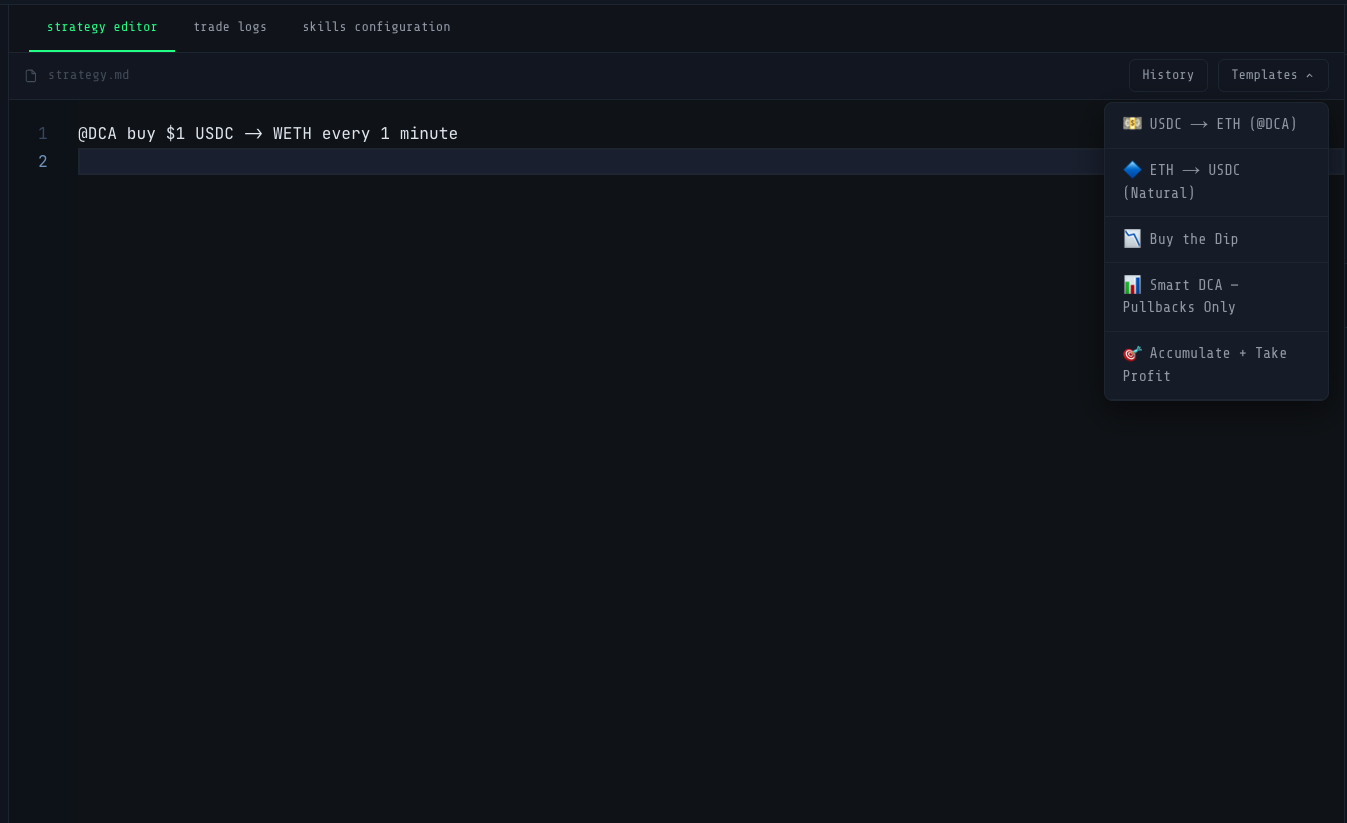 Strategy Editor — Templates dropdown
| Template | Description |
|---|---|
| USDC → ETH (@DCA) | Regular accumulation of ETH using USDC |
| ETH → USDC (Natural) | Natural language sell-side strategy |
| Buy the Dip | Conditional accumulation on price drops |
| Smart DCA — Pullbacks Only | DCA triggered only on pullback conditions |
| Accumulate + Take Profit | Combined accumulation and exit strategy |
Execution Plan
When you click Deploy Strategy, the Terminal does not execute immediately. Instead, it presents an Execution Plan — an AI-generated breakdown of exactly what the Agent will do, reviewed before anything goes on-chain.
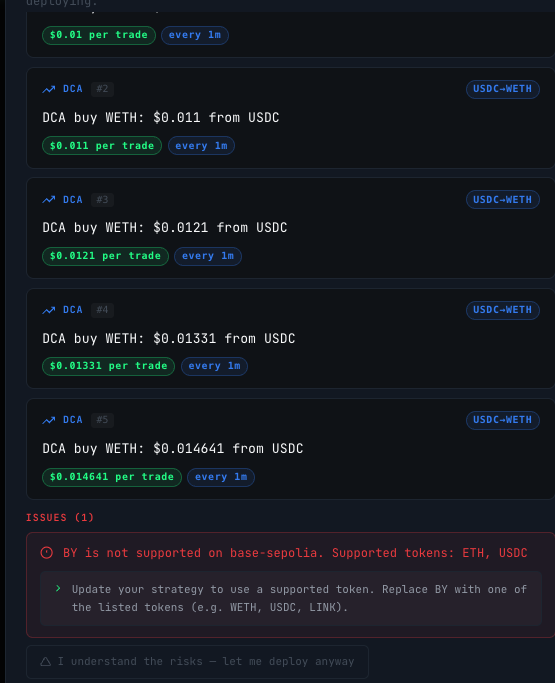 Execution Plan — planned tasks, warnings, and Confirm & Deploy
The Execution Plan shows:
- Planned Tasks — each discrete execution task with the Skill invoked, asset pair, trade size, and interval. Tasks are numbered and labelled (e.g. DCA #1, CONDITIONAL #2).
- Warnings — pre-flight checks flagging potential issues such as high execution frequency, missing parameters defaulted by the Agent, small trade sizes relative to gas costs, and tasks with no stop condition.
Review warnings carefully before confirming. They do not block deployment but reflect the Agent's interpretation of your strategy. Click Confirm & Deploy to commit, or Cancel to return to the editor and refine.
This is the core of TDS Terminal's execution model: the Agent interprets intent, makes its plan explicit, and puts the Operator in control of the final decision before any funds move.
Strategy History & Rollback
Every deployed strategy is versioned automatically. Click History in the top-right of the editor to open the Strategy History panel.
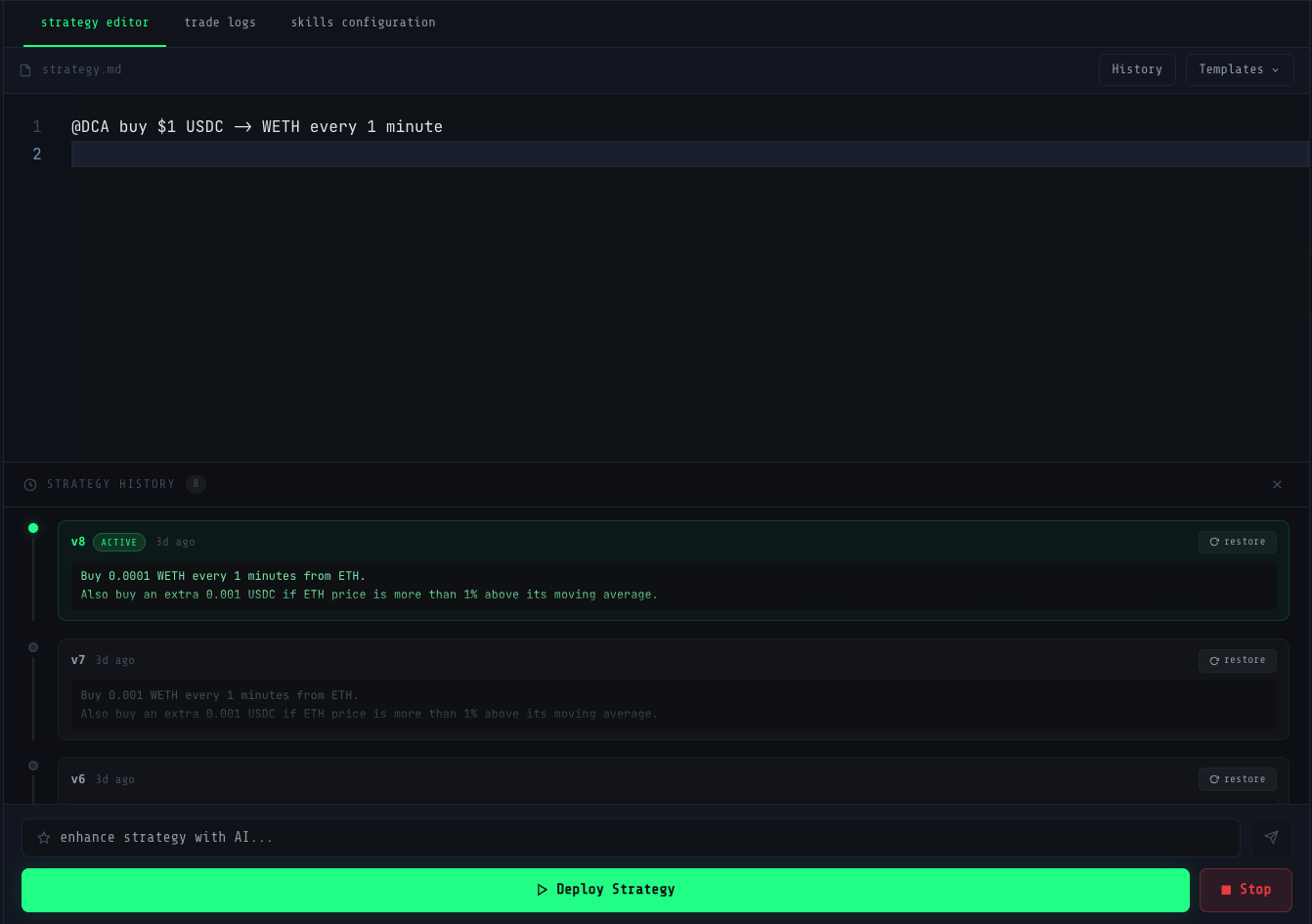 Strategy History — version list with active tag and restore options
Each version shows:
- Version number — incremented on every deployment (v1, v2 ... v8)
- Status — the currently active version is tagged ACTIVE
- Timestamp — how long ago it was deployed
- Strategy content — the instruction as written at time of deployment
Click Restore on any prior version to load it back into the editor. You can then review, modify, and redeploy it as a new version. Restoring does not overwrite history — it creates a new version entry on deployment.
Trade Logs
The Trade Logs tab provides a full record of all trades executed by the Agent, labelled Track Actions.
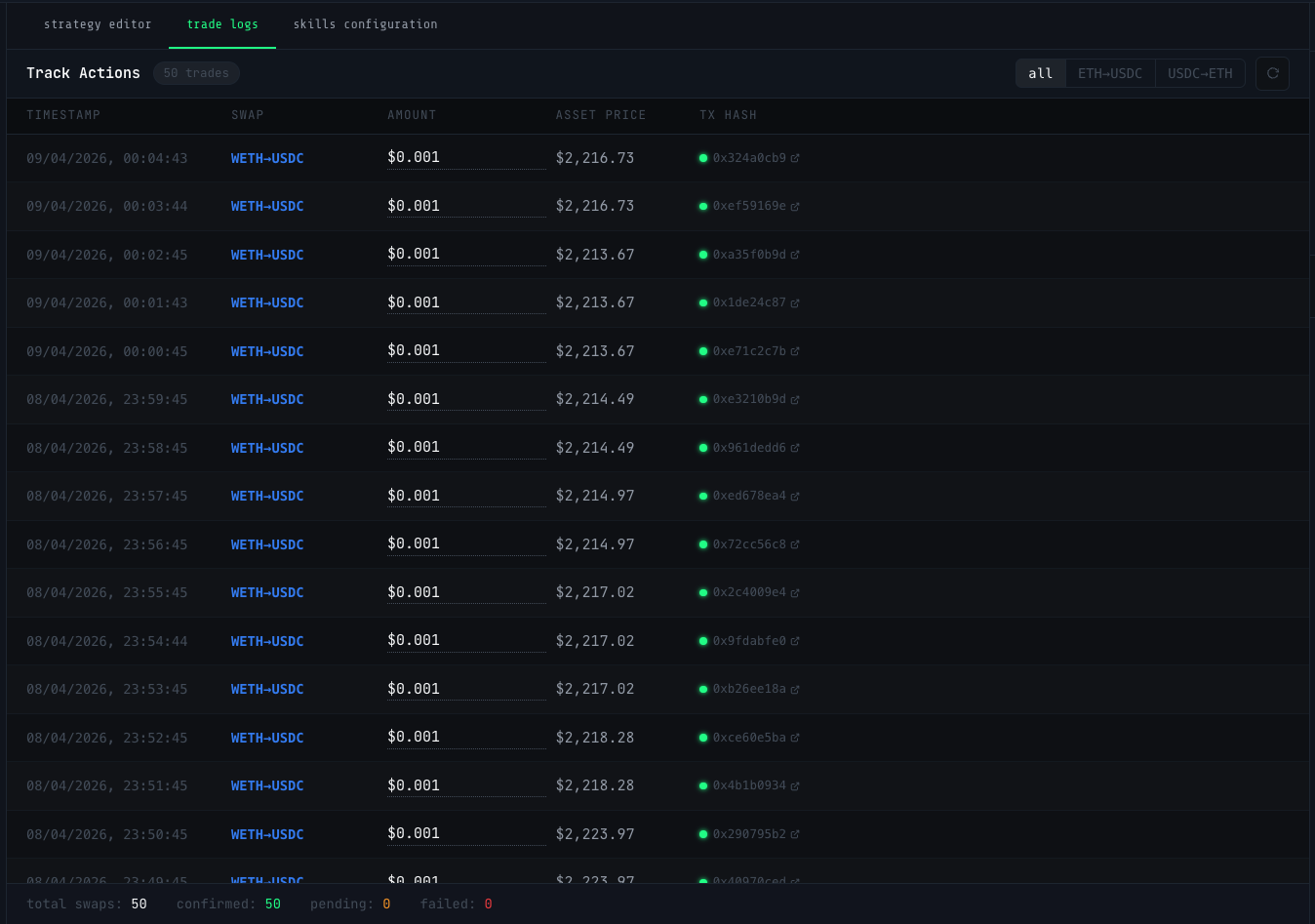 Trade Logs — timestamp, swap pair, amount, asset price, transaction hash
| Column | Description |
|---|---|
| Timestamp | Date and time the trade was executed |
| Swap | Asset pair traded (e.g. WETH→USDC) |
| Amount | USD value of the trade |
| Asset Price | Price of the asset at time of execution |
| TX Hash | On-chain transaction hash — click to open on the block explorer. |
Use the filters at the top-right to view all trades or filter by pair. The footer shows running totals: swaps, confirmed, pending, and failed. A green dot on the TX Hash indicates a confirmed on-chain transaction. All trade data is a direct record of on-chain settlement — not simulated or estimated.
Skills Configuration
The Skills Configuration tab is where Operators manage which Skills are available to the Agent. See the Skills section for the full reference table and per-skill documentation.
Skills installed here are deployed to your Railway-hosted Openclaw instance and become available to the Agent immediately. They are invoked dynamically based on strategy intent, or referenced explicitly by @SkillName in the editor.